Loading...
VS Code Tips and Tricks That Speed Up Development
All keyboard shortcuts mentioned below are for Windows.
Snippets
You can add custom snippets without installing any extensions.
Go to:
File → Preferences (Code → Preferences on macOS) → Configure User Snippets
Then create a new snippet file or edit an existing one.
Snippet files use the JSON format and can contain an unlimited number of snippets.
Example: React useReducer Snippet
json
1{2 "my React.useReducer snippet": {3 "prefix": "rsr",4 "isFileTemplate": true,5 "body": [6 "const initialState = {",7 " //$1",8 "}",9 "",10 "function reducer(state = initialState, action) {",11 " switch (action.type) {",12 " default:",13 " return state",14 " }",15 "}",16 "",17 "function MyComponent() {",18 " const [state, dispatch] = React.useReducer(reducer, initialState)",19 " ",20 " return <div />",21 "}"22 ]23 }24}
Where:
- "my React.useReducer snippet" — snippet name
- prefix — trigger text (type rsr to insert the snippet)
- body — code that will be inserted into the file
You can also add a description field to provide additional information about the snippet.
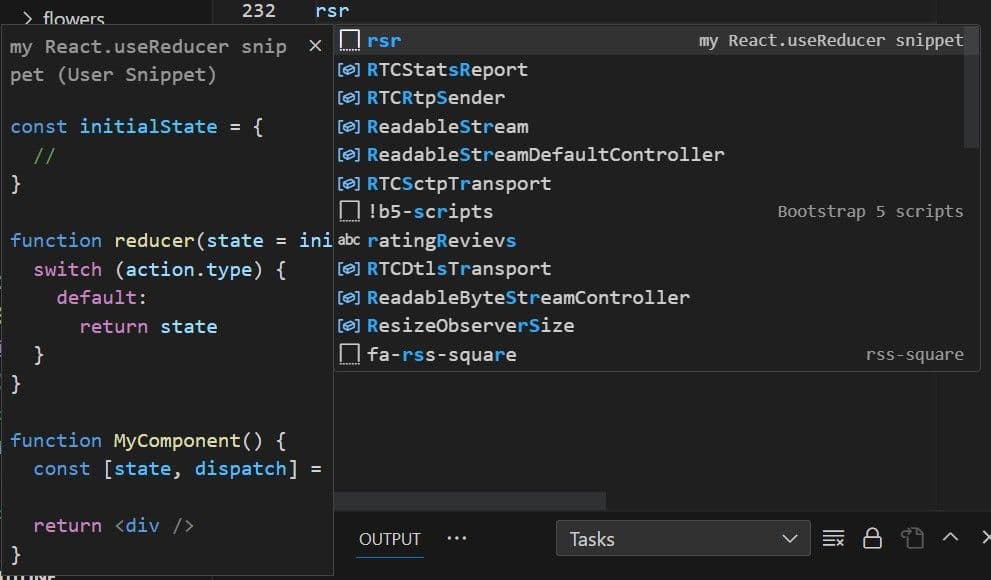
In the example:
json
1{2 "For Loop": {3 "prefix": ["for", "for-const"],4 "body": ["for (const ${2:element} of ${1:array}) {", "\t$0", "}"],5 "description": "A for loop."6 },7}
There are three placeholders: ${1:array}, ${2:element}, and $0. You can switch between them using the Tab key. The text after : is the default value.
The filling order goes in ascending order starting from 1. $0 is optional and always comes last.
You can learn more about this in the User Snippets documentation.
Formatting
Prettier
Documentation: https://prettier.io/
You can quickly format your code using the VS Code Prettier extension.
To configure the extension settings, go to the plugin page and open its settings.
Shortcut: Shift + Alt + F.
Keyboard shortcuts for formatting:
Join lines:
If you need to combine code lines into a single line.
Windows — you need to configure it.
Go to File → Preferences → Keyboard Shortcuts and enter editor.action.join in the search bar. The Join Lines command should appear.
Collapse a Code Block
Ctrl + Shift + [
Expand a Code Block
Ctrl + Shift + ]
Indent left
Ctrl + [
Indent right
Ctrl + ]
Creating elements
All the listed options can be combined with each other.
Create an element and specify a class name:
element name + dot + class name + Enter
Example: div.container
Create an element with an empty class:
element name + dot + Enter
Example: div.
Create an element with children:
element name + > + child element name
Example: div>p
Create multiple identical elements:
element + * + number of elements
Example: p*2
Additional useful keyboard shortcuts
Copy line up
Shift + Alt + Up Arrow
Copy line down
Shift + Option + Down Arrow
Select word
Ctrl + D
To select multiple occurrences of the same word, press this shortcut as many times as needed to select the required number of words.
Go to a specific line
Open the search field using Ctrl + G and enter the line number.
Go to symbol
Ctrl + Shift + O
Delete previous word
Ctrl + Backspace
Select words
Ctrl + Shift + Right Arrow / Left Arrow
Delete line
Ctrl + X
Add cursor above
Ctrl + Alt + Up Arrow
Add cursor below
Ctrl + Alt + Down Arrow
Rename
F2
View the list of commands in VS Code
Ctrl + Shift + P, F1
Open search palette
Ctrl + P